EXPORTING IIF LIST DATA FROM Reckon Accounts Hosted
1) Launch the Hosted application and open the specific company data file you want to work with
2) Click on the File menu, then select Utilities and then select Export, finally select Lists to IIF Files...
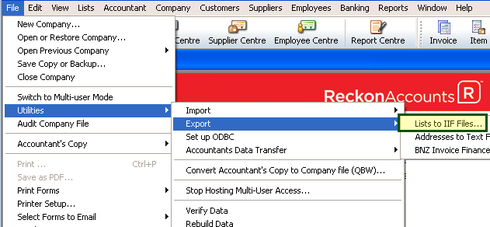
3) Select each List type shown below to be exported to a known location on your local hard drive as a plain-text tab-delimited IIF (Intuit Interchange Format) file
· the Chart of Accounts List
· the Customers List
· the Suppliers List
· the Items List
· the Employee List
Then click the OK button
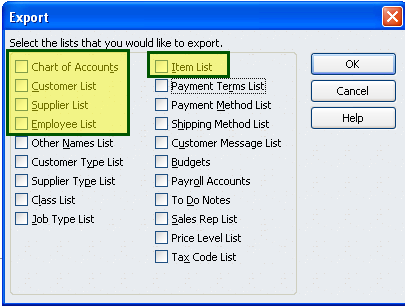
Give each file a distinctive name when exporting separately
Example:
Chart of Accounts.IIF
Items.IIF
Customers.IIF
Suppliers.IIF
4) Once you have exported the lists to the Hosted Q: drive, you need to download them to your local computer
You can watch the video for Uploading and Downloading Company Files to the new Reckon Accounts Hosted for more details.
5) Once you downloaded them to your local computer hard disk you can send them to us by clicking the link below
Send us the export files.
MIGRATION: How to securely send a data file to the Reckon Migration Team
In the Short Note to Recipient field add the following:
Custom Conversion Request (Hosted Lists IIF)
Company Name: _______________________
Contact Name: _________________________
This will let us know that the file being submitted is assigned to your case and allow the conversion team to perform the analysis.
If you do not provide this information, it will result in delays processing your case.