Follow the steps below to create a backup file with complete verification.
With your company data file open in the Reckon Accounts program.
1. Click on the
File menu >
Save Copy or Backup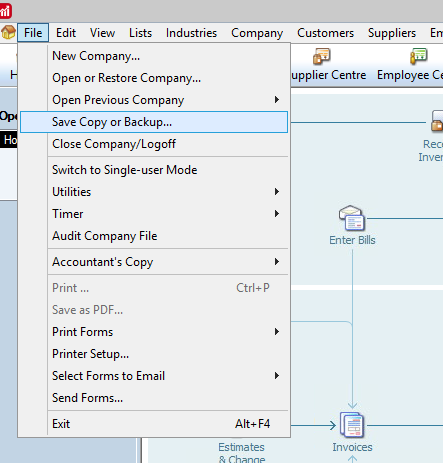
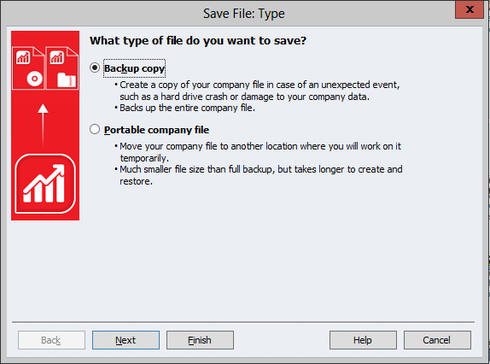
2. Select the
Backup copy option and then click the
Next button
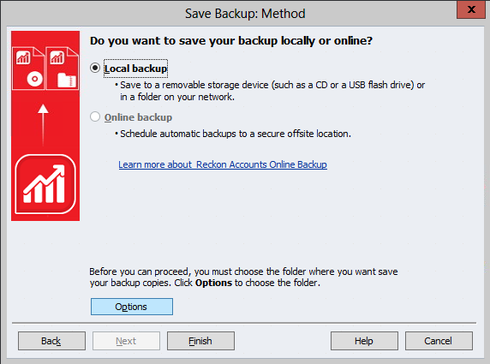
3. In the
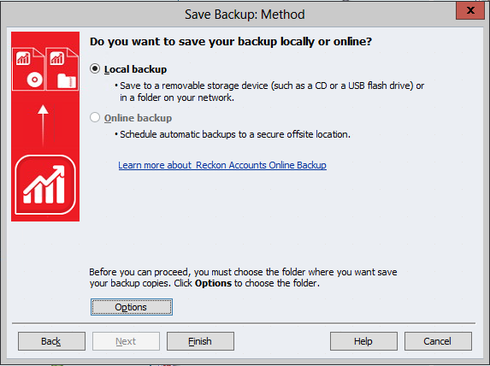
Save Backup: Method screen, click on the
Options button
4. In the
Save Backup Copy: Options screen you can configure specific settings.
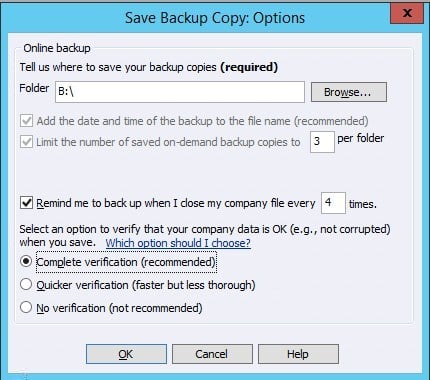
You need to decide where you want your backup sets stored.
You may have for example an external hard disk drive or a specially designated documents folder on your local hard disk drive where you prefer to store your data files and backup files.
Click on the
Browse button you can choose the folder location where the backup file will be saved and stored.
Select the “
Complete verification (recommended)” option and then click the
OK button.
5. Once you are back in the
Save Backup: Method screen, click on the
Finish button to proceed with the backup process.
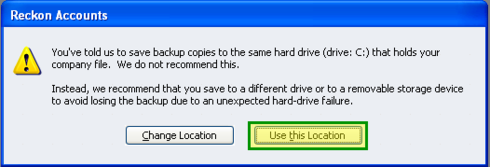
If you are prompted with a similar dialog window select "
Use this Location"
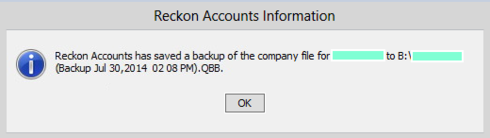
6. Once the backup has completed you will be prompted with a similar message prompt as shown below. Click the
OK button
7. We recommend that you also regularly keep a secondary copy of the backup which you could store on an online file storage service (online backup) or to an external portable hard disk drive or high capacity USB flash drive.