
🌟 Tip Tuesday – Welcome to 2026! 🌟
Good morning everyone, and welcome to my first Tip Tuesday of 2026.
I hope you all had a great New Year and are feeling well-rested and refreshed.
For this week’s tip, I want to remind everyone how to re-import a bank statement file (QIF) that didn’t import successfully the first time. You might see a message that there are no new transactions to import, or nothing happens at all when you try again. Following this tip can help you re-import these bank statements.
Why does this happen?
When Reckon Accounts Business imports a QIF, it remembers the first transaction in the file. If the same transaction appears again, it’s flagged as already imported, and the import won’t continue.
Renaming the file won’t help, because Reckon recognises the transaction data itself, not the file name.
Bank QIF file format (example)
Header:

The transaction block:
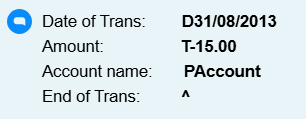
The ^ symbol marks the end of a transaction.
How to fix it
To work around this, we simply need to move the first transaction to the bottom of the file.
This makes Reckon treat it as a “new” QIF file and allows the import to proceed.
Summarised steps
- Make a backup copy of the QIF file.
- Open the duplicate file in Notepad.
- Cut the first transaction block.
- Paste it at the very bottom of the file.
- Remove the blank line left behind.
- Save the file and re-import.
For more information check out our full help article here:
https://help.reckon.com/article/aaxfbwli65-kba-5029-how-to-re-import-a-bank-statement-file-qif