We are wainting to import purchase orders from an IIF file/template.
We have managed an importof some data, but not item numbers or descriptions.
Mapping below, can anyone make a suggestion please or are we juts wasting our time..? TIA.
Hi @Mike_10271906
Are these purchase orders coming from another application (i.e. being automatically created by that other application)
Or are you exporting data from that other application and then manually creating the IIF files?
What documentation are you referring to regarding the structure of the IIF file?
Is it only purchase orders that you are looking into 'importing' into the Reckon Accounts data file?
Have you considered a 3rd party tool that can transform data into something that can be brought into a Reckon Accounts data file?
Zed Axis | Marketplace
Hi @Zed Axis. We are importing intially from an excel sheet and converting to IIF. We now have item number, description coming through, but struggling with the total for each item. Gemini is suggesting we use negatives (as above) but we cant save the PO with a negative value. We so very close to making this work!
Zed Axis is the 3rd party tool/utility and not a name.
What you saw in the previous post is a link to the Reckon Add-on Marketplace.
You've indicated that you are using Gemini AI to help you with the creation of IIF files.
The in-product Help function of the Reckon Accounts Premier application has details about transactions and IIF. You can use that as a guide or help your Gemini with more context.
Click on the Help menu, select Reckon Accounts Help.
Then in the Search tab use the keyword IIF
This may assist you as an example of a purchase order.
!TRNS
TRNSID
TRNSTYPE
DATE
ACCNT
NAME
CLASS
AMOUNT
DOCNUM
MEMO
CLEAR
TOPRINT
NAMEISTAXABLE
ADDR1
ADDR2
ADDR3
ADDR4
ADDR5
DUEDATE
TERMS
PAID
PAYMETH
SHIPVIA
SHIPDATE
OTHER1
REP
FOB
PONUM
INVTITLE
INVMEMO
SADDR1
SADDR2
SADDR3
SADDR4
SADDR5
TAXCODE
TAXAMOUNT
TAXITEM
PAYITEM
YEARTODATE
WAGEBASE
EXTRA
TOSEND
ISAJE
!SPL
SPLID
QNTY
PRICE
INVITEM
TAXABLE
VALADJ
REIMBEXP
SERVICEDATE
OTHER2
OTHER3
!ENDTRNS
TRNS
40
PURCHORD
10/16/2008
Purchase Orders
My Supplier
-6.6
1
N
Y
mike test
SPL
41
Inventory Asset
6
3
2
my inventory part
NOTHING
NCG
0.6
ENDTRNS
Hi @Datarec Thank you so much for your help! We have succeeded with an import, that is correct and has no errors. See mapping below. First step is now done.
Now we need to filter, sort and add parent categories to our data before the import, so it ends up in the right places.
Yesterday before all of this, I called Reckon support about importing. The answer was dreadfully lacking and just full of corporate BS…in fact they only indicated that it may or may not be able to be done…..which I find very hard to believe. What is wrong with being honest with me..? I remain un-impressed with Reckon.
IIF imports are no longer the preferred or supported method, other than the information outlined in the in-product Help documentation.
If you're looking to integrate data into Reckon Accounts, the Reckon Accounts SDK and API approach is the supported path.
This approach typically requires some coding or development experience.
When you mentioned "Now we need to filter, sort and add parent categories to our data before the import, so it ends up in the right places."
Can you clarify what you mean by 'parent categories'?
Are you referring to a parent-child structure for the accounts or the items being used in the purchase order IIF?
Or are you referring to setting a "Class" for the entire purchase order transaction itself?
Hi @Datarec Parent-child structure for items, see the example above mostly, but the same applies for any heading if it has a parent-child structure.
The screenshot you provided indicates an item that has a parent-child structure denoted by the ":" character.
The same thing is used for accounts.
You can export your Accounts and Items to see what the NAME of each one is showing the parent-child structure.
1) Launch the Reckon Accounts program and open the specific company data file you want to work with
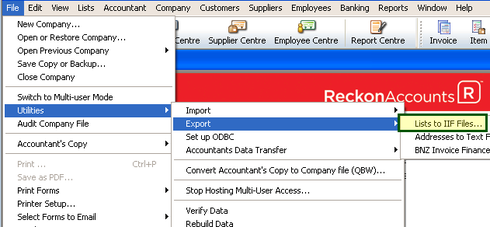
2) Click on the File menu, then select Utilities and then select Export, finally select Lists to IIF Files...
3) You need to export each List separately to a known location on your local hard drive as a plain-text tab-delimited IIF (Intuit Interchange Format) file
· the Chart of Accounts List
· the Customers List
· the Suppliers List
· the Items List
· the Employee List
Select each individual List type that you would like to migrate and then click the OK button
Repeat for the remaining List types.
You can then open the IIF in a text editor or Excel (usually easier to see the columns).
Hi @Datarec Thanks very much, yes we understand all of this. Getting "purchase descriptions" to populate. Is this a matter of adding "PURCHASEDESC" to our mapping?. Is there any way around having to be in "admin" mode to do an import?
The example I had provided should have all of the available columns for a purchase order transaction type.
Usually easier to just leave them all in there instead of mix-match-pick-choose which columns to include as the order of the columns or the existence of one column being dependent on another could result in errors or unexpected behaviour if one or more are missing.
That PURCHDESC column would be in the ITEM IIF, not in the purchase order transaction IIF.
Essentially you need to first ensure that the ITEM or ACCOUNT already exists in the data file into which you are importing a purchase order transaction IIF.
Any logged in user needs a high enough access level or role to all for import.
@Hi @Datarec "Any logged in user needs a high enough access level or role to all for import." From what I can see, only "admin" can perform imports. In our case the system needs to be in single user, meaning no one elese can use it for that time. Is there a way around this?
Apologies for the confusion, the access levels/roles I was referring to was in the Enterprise, not the Premier product.
I've tested having the data file in Multi-User Mode, logged in as a non-Admin user to try the import and encounter this message.
This means that there is no other way to import IIF files unless logged in as the Admin user.
Right now, if you are able to successfully create the IIF file and import them when logged in as the Admin user then that is the simplest option.
You may consider making use of 3rd party products that can assist you with the import of transactions such as purchase orders.
CData ODBC Driver For Reckon | Marketplace
CData Excel Add-In for Reckon | Marketplace
QODBC Driver | Marketplace
The alternative method is to make use of the Reckon Accounts SDK/API (QBXML) in which an authorised application can access the data file using their own login credentials.
This would entail you or someone you engage with to create custom software to facilitate the connection to the data file and enabling it to take actions such as create transactions (bills, cheques, invoices, payments, purchase orders, etc).
If you are interested in becoming a Reckon Developer Partner below is the link.
Home - Reckon Developer Portal
@Datarec We are going well but we have run into a problem with our items going against our COG 5000 account, instead of COG 2320 account and we are having toruble seeing how to change this. Have you any ideas please?