Hi everyone,
Reckon One has received an update this morning which has added further enhancements and functionality.
Check out the details below
DASHBOARD HINTS
Dashboard widgets now display hints with green action options when there is no data available for the period configured for the widget. This helps provide more information and context to Reckon One users should they require it.
 RECONCILIATION ENHANCEMENTS
The prompt that appears when finalising a reconciliation now allows you to quickly access the reconciliation report. Note: This prompt will only display if all transactions within the reconciliation period are marked as reconciled before selecting the
Finish Reconciliation option.
On the image below, the message on the left is the previous design. The right message is the
NEW design.
Enabling the lock off option will lock off the bank account to the reconciliation end date specified.
Enabling the view reconciliation report option will display the reconciliation report in a new browser tab.
 ESTIMATE TOGGLE ON/OFF
Reckon One now allows estimates to be toggled on and off.
The Estimates functionality is available as part of the Invoices Module. Estimates will be disabled by default in new books that have the invoicing module. Estimates will remain enabled in existing books (created before this update) that have the invoicing module.
To access the estimate toggle setting, click the Administration menu > Settings > Day to day > Money in > Estimates
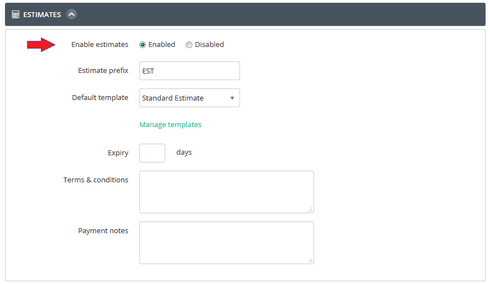
When estimates are disabled:
- the estimate option in the vertical navigation menu is hidden
- the estimate option in the quick transaction menu is hidden
- the estimate option in the email setting page is hidden
- existing estimates transactions are avaliable in reports
- the estimate list report remains accessible in the customer section of the report centre
- drill down access to the estimate form is disabled for estimate transactions in reports
- drill down access to the estimate form is disabled for invoices that are linked to estimates (the estimate link on the invoice displays in a read only/non-clickable format)
VIEW YTD SETUP HISTORY
A ‘View history’ link has been added to each individual YTD set up transaction. The history view tracks changes made to a YTD entry. The only logged entry that will show is when the YTD transaction was created. The View history link will be available when the item is saved for the first time.
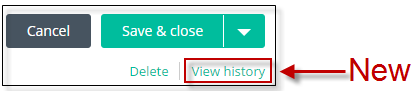
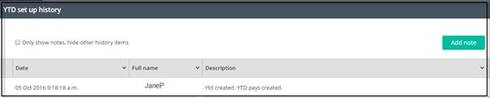
Selecting 'View History' will display the following details:
- Date and time entry of when the pay item was created/modified
- The Full name of the user who created/modified the pay item.
- Description of the area that has been modified
- Users can also add additional information by using the Add notes button
VIEW SCHEDULE HISTORY
Each Pay Schedule created will now include a ‘View history’ link. The view history tracks changes made to a pay schedule. An entry will be logged in the view history screen against each of the available fields when a change occurs. The View History link will be available when the item is saved for the first time.
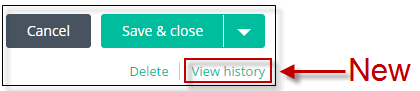
When the View History link is selected, the following details will be displayed:
- Date and time entry of when the pay item was created/modified
- The Full name of the user who created/modified the pay item.
- Description of the area that has been modified
- Users can also add additional information by using the Add notes button.