If you want to know the format that you can use to import budgets into your Reckon Accounts data file, use the method below.
To import an existing budget file, it needs to be in the
IIF format that the Reckon Accounts software can recognise.
We recommend that you test this first in a new data file until you are confident about how to use this process to create your own budget files in Excel that is in a format that can be imported.
1) Create a blank new test data file
2) Add some accounts that may be representative of the same types of accounts in your real data file
In this test data file, you must create a new budget.
This will give you a template for what needs to be in a budget import file.
To create an example budget IIF file:
1) Click on the
Company menu
2) Click on
Planning and Budgeting3) Click on
Setup Budgets
If you have any existing budgets, click on the
Create New Budget button.
You will be asked a series of questions.
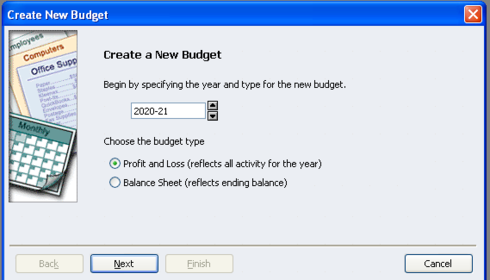
Answer those questions based on your requirements.
If you are unsure, look at the in-product Help system.
If you are in the
Set Up Budgets screen, click on the
F1 key on the keyboard to bring up context-sensitive help information for that screen or click on the
Help menu, then
Reckon Accounts Help. Then search for the keyword
budgets Since you are only creating an example file that can be opened in Excel so that you can see what a budget file looks like, select only a few accounts and put an example figure such as "100"
for each account that you would want to have budget figures for.
When ready, click on the
Save or
OK button.
Once you have an existing example budget, you can export it.
To export an existing budget:
1) Click on the
File menu
2) Click on
Utilities3) Click on
Export4) Click on
Lists to IIF Files and then click the
OK button
You will be prompted to nominate a name and a folder location for the export file that will contain the existing budget data.
Once you have saved the export file (example: MyNewBudget.IIF) you can open this file in Excel or other spreadsheet or text editor (that supports viewing data in columns/rows).
There you can see the accounts and the example budget figures.
You can now see what column headers are needed along with some example data.
You can then change these budget figures as necessary, add new accounts and save a new file of type "Tab-delimited text"
IMPORTANT: Before you bring in these types of changes, make sure you have a backup of your data file.To import a new budget file:
1) Click on the
File menu
2) Click on
Utilities3) Click on
Import4) Click on
IIF Files
5) Navigate to the folder where you have saved the new budget file
6) Click on the
Files of type drop-down list and select "
All files *.*"
7) Select the new budget file which may have ".IIF" or a ".txt" file extension and then click the
Open button
The import process should then commence.
You can then go back to the Planning and Budgeting area to see the results.
Regards,
Data Recovery Team