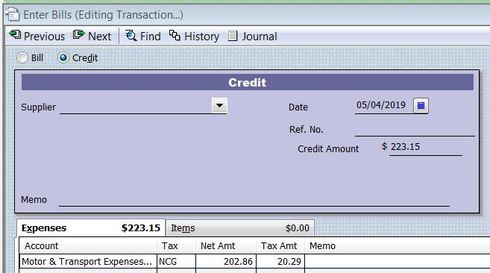
Supplier Credit/Refund - Reckon Accounts Enterprise 2019
Comments
-
You need to go to Make Deposits - put in the bank that the funds came back into - and the date they came in (August 2019) - then in the Make Deposits window - for name put the suppliers name - and the From Account - put your Accounts Payable account - then the amount of 223.15. Save this.
Now go to Pay Bills - and you will see the deposit entry of $223.15 there - and you can then click on this and apply the Credit that you raised in April 2019. Cheers Linda2 -
WOW thank you so much Linda!
2 -
Hi Charlene
You need to enter a Deposit (“Received from” the same Supplier) posting to your “Accounts Payable” account. Enter/select as applicable for other columns including Memo in both Memo fields (eg “Credit Refund for ..…”)
This places the “Deposit” in the Bills list in your Pay Bills window for you to apply the Credit against.
- Go to Pay Bills
- Tick the Deposit in the list
- Click on the “Set Credits” button (above “Payment Date”) & then “Done” to confirm in the allocation window
- Make the “Payment Date” as per the Refund received date then click on “Pay Selected Bills”
NB: Due to a long-term glitch, the Deposit won’t automatically show in your Supplier’s transactions as the payee name drops out on stand-alone Deposits.
To correct this, simply go to your Bank Account register & enter/select the Supplier name in the Payee column & save/record the transaction.
When you go back to your Supplier Centre, this Deposit will now show in their transaction list.
This process ensures the:
GST credit is correctly accounted for
actual refund received is recorded &
existing credit is cleared
Shaz Hughes Dip(Fin) ACQ NSW, MICB
Reckon Accredited Professional Partner Bookkeeper / Registered BAS Agent (No: 92314 015)
Accounted 4 Bookkeeping Services
Ballajura, WA
0422 886 003
2 -
Thank you very much Shaz2