
Hey everyone!
Your Reckon One reports have been given a huge upgrade with whole host of new features and functionality designed to help you find and view your data 🙌
This week's #TipTuesday (on a Wednesday 😄) focuses on some of the new features that are available in reports including filtering, search, customising your view and a whole lot more!
The reports upgrades are currently in beta which you can enable by clicking the banner when you open a report.

Lets go through a few of the new features that are now available! 👇
📊 More filter options
You can filter a report to narrow the data that's shown so you can see only the data you need. Depending on the report and the features you have enabled in your book, you may be able to filter by item, account, project, customer, supplier, employee, classification, or other types of data.
Simply click the More button ➡️ then select Filter ➡️ Choose your filters ➡️ Refresh

📊 Search within your reports
You can search for a specific piece of data within a report such as a reference code, number, or keyword.
When you click in the search bar and type, the report will then be filtered to only show line items that match what you typed.

📊 Show or hide columns
You can show or hide specific columns from your report simply by toggling which columns to display.
Simply click the More button ➡️ then select Show/Hide information ➡️ Toggle on or off any columns that you want to show or hide.

📊 Filter or search within columns
Using the filter button on any column to filter data by criteria you set. Alternatively, you can search within a column using the column search field.
Data will filter to anything that exactly matches what you type.

📊 Resize columns
You can simply drag between column headers to make them wider or narrower on-screen.

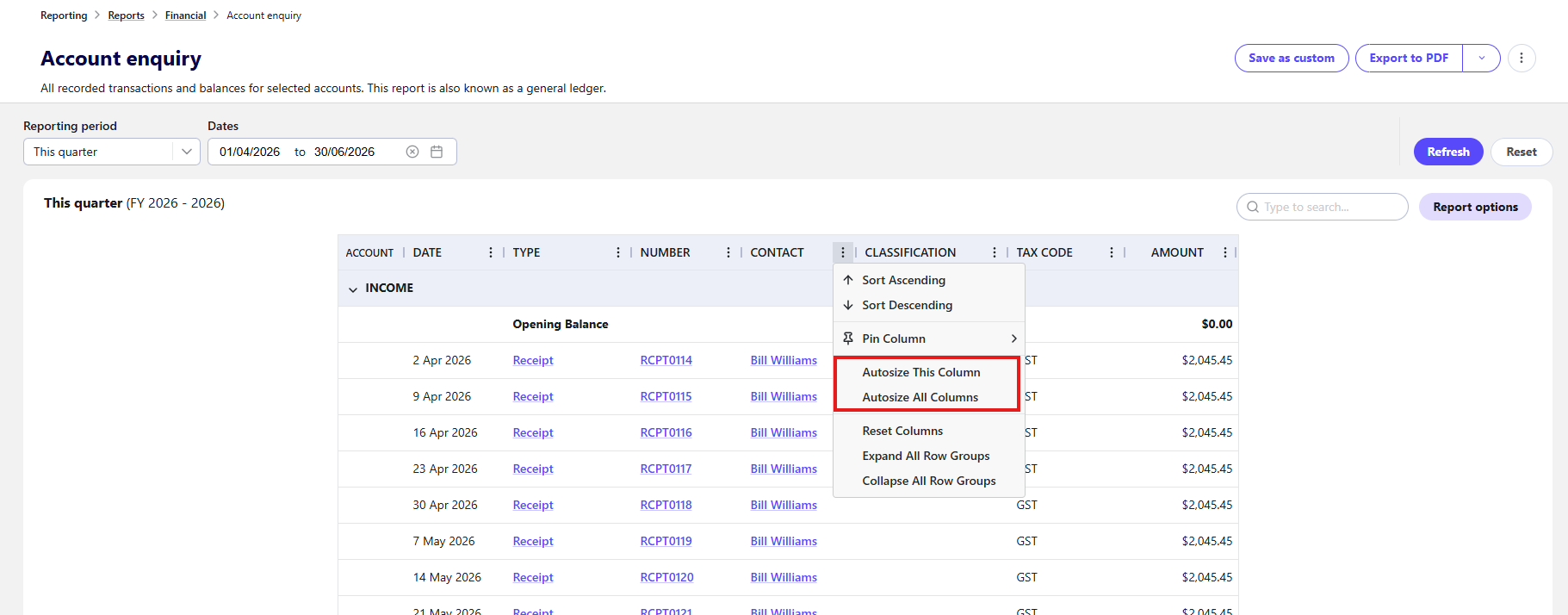
The column menu button (3 dots next to the column name) gives you additional options including autosize options.
- select Autosize this column to autosize a specific column to the size of the cell contents
- select Autosize all columns to resize all columns to fit the grid width.
📊 Column sorting
To sort the data in a column, you can:
- click on the column name to first sort by ascending, then descending, then if available, by the default order (which varies between reports).
- click on the column menu (the 3 dots next to the column name), then select the preferred sorting option for the column.

📊 Pin Columns
To pin a specific column so that it is always visible as you scroll the report:
- Click on the column menu (the 3 dots next to the column name)
- Select Pin column.
- Select Pin Left or Pin Right.
To unpin a column, click on the column menu (the 3 dots next to the column name), select Pin column, then select No pin.

📊 Reorder your columns
Simply drag columns to the order you wish then refresh your report and your columns will be reordered.

📊 PDF export options
PDF exports are now significantly more configurable, with settings that can be managed globally or customised for individual reports.
- Page size and orientation (portrait or landscape).
- Page margins.
- Display settings aligned with the report grid view.
- Configurable headers, report names, notes, footer text, and header alignment.
- Multiple scaling options including No Scaling (default), Fit All Columns to Page, Smart Page Breaks

✨ More to come! Give us feedback!
The new report experience is currently in beta so we're super keen to hear your feedback on refinements, improvements or any issues.
We're already working on more improvements so there's more to come but we'd love to hear from you 🙂
