The Data Recovery Team has provided you with the reconstructed backup file which you will need to upload to your Hosted account.
1. Login to the Accounts Hosted platform

2. Then launch the
Accounts 20XX RX application

3. Once the
Reckon Accounts application has started:
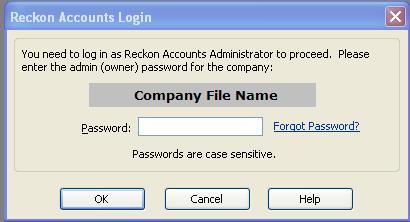
* If you see the
Reckon Accounts Login screen, press the
Cancel button
* If you see the No Company Open screen

Click the
File menu and click
Open or Restore Company to open the backup and portable file restore wizard.

When you restore a
company backup file (QBB) the information contained within will be extracted and converted to a regular company data file (
QBW).
Click
Restore a backup copy (.QBB) and then click
Next.

The
Restore From window will be displayed with the default folder location being the Hosted
B: drive

From there you can locate and select the backup file that you want to restore.
If needed, click the
Look in drop-down arrow and navigate to a sub-folder where you saved the backup file.
(for example,
MyCompanyName (Backup).QBB).
(Note: QBB and QBM files that are uploaded from your local computer to the
 hosted platform will automatically be placed in the B:(Backup) drive.     All other uploaded files end up in the upload folder on the Q:(My Live)   drive "Q:\Upload")
Select the backup file that you want to restore and click the
Open button.
In the
Restore Backup: To Location window, click
Next.
When the
Restore To window opens you can choose to simply restore to the root of the Hosted Q: drive.
If you prefer that the resulting company data file ends up in a sub-folder or a shared folder shortcut location, then use the up-down scroll bars to locate that folder.

The resulting company data file and all of its related files will be stored in this location.
You can also change what the resulting restored company file will be called.

Click the
Save button and respond to any further messages that may be displayed.