Hi everyone!
Our Reckon One team have introduced a series of new enhancements to our cloud solution Reckon One which are now live!
Check out the details here;
PayPal integrationReckon One now supports PayPal payments for invoices!
This applies to Australian books that have the invoicing module enabled. To use the PayPal integration feature you will need to configure the payment services page in Reckon One.
To access this page select the Administration menu > General settings > Payment services

- Enable the Activate PayPal payments setting (this option is enabled by default)Enter the email address linked to your existing PayPal business account. If you don’t have an existing PayPal business account then there are two options available to create a new PayPal business account
Option 1: Click the create a business account link to access the PayPal account signup page
Option 2: Enter an email address that you wish to use & PayPal’s accelerated signup process will create a business account for you
- Reckon One will generate a new Bank account called PayPal account
- Select an expense account to track PayPal transaction fees
Note:
- PayPal integration for NZ & UK books will added in a future product update.
- The Activate PayPal payments setting is enabled by default however the required fields (PayPal business account email & PayPal fee account) need to be completed & saved before you can use the PayPal feature.
- The ability to use an existing bank account instead of creating a new bank in Reckon One for tracking PayPal payments will be added in a future product update.
- If the bank account name PayPal account is already in use in the book then the auto created bank account name will use PayPal account 1
- If the book has an expense account named Bank charges then this will be the default selection as the PayPal fee account.
- $60,000.00 USD is the maximum transaction amount that can be processed with PayPal.
The newly created PayPal account will appear in the bank account list.

Once PayPal is setup, invoice emails sent via Reckon One will contain additional text to inform the customer that they can pay the invoice online. The link provided in the email will allow the customer to access & pay the invoice online via PayPal.
Note:
- The PayPal link is only provided when emailing unpaid invoices (where approvals is off) or approved invoices (where approvals is on).
- The PayPal link is only provided in the email text. In a future update the invoice will also include PayPal information.

When your customer clicks the Pay invoice link they will access a page where they can see the invoice amount due & have an option to open with PayPal.

When your customer clicks the Pay Now option they will access a PayPal page where they can pay using an existing PayPal account, debit card or credit card.

When the customer submits a PayPal payment they will access a status page.
The left image shows an example where the payment was successful and a declined payment on the right.

Successful PayPal payments will automatically create a receipt transaction against the relevant invoice in Reckon One.
- The receipt date will use the date of the PayPal payment.
- The receipt bank account will use the PayPal bank account configured in Reckon One.
- The receipt amount will be the PayPal payment amount minus any PayPal transaction fees.
- The ‘Allocate’ tab in the receipt will reflect the invoice payment amount against the relevant invoice.
- The ‘New’ tab in the receipt will reflect the PayPal fee using the expense account configured in Reckon One.
- The reference field in the receipt will show the PayPal payment transaction ID.
- The allocation notes field in the receipt will show the text ‘Paid via PayPal’.
- This receipt will update the invoice in Reckon One to have a ‘Paid’ status.

The receipt history will show an entry from a user named ‘Client’.

In the scenario where a customer attempts to access the PayPal link via the invoice email where the invoice is already paid, the following page will appear to inform the customer.

In the scenario where a customer attempts to access the PayPal link via the invoice email where:
- The linked invoice has been removed/deleted
- The linked invoice status in Reckon One has been changed from ‘Approved’ to ‘Draft’ (assumes approvals is enabled)
- The PayPal setting in Reckon One has been disabled
The following page will appear to inform the customer.

Estimate to Invoice conversionReckon One now allows you to convert an estimate to an invoice.
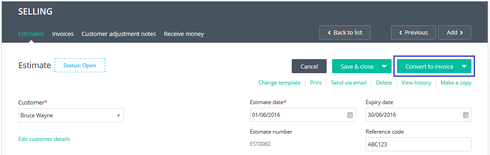
Once an estimate is converted to an invoice:
- The estimate status will update to closed-invoiced
- A link to the relevant invoice will show on estimate (this link won’t appear on the printed/emailed estimate)
- The estimate history will be updated


Once an invoice is created from an estimate:
- A link to the relevant estimate will show on the invoice (this link won’t appear on the printed/emailed invoice)
- The invoice history will be updated


Estimate ApprovalsWhen approvals is disabled, the estimate workflow allows you to convert an open estimate to use a closed-invoiced status or use a closed-declined status.
This shows the Estimate list screen with approvals disabled

Note:
- The expired tab shows estimates with an open status where the expiry date has lapsed
- The closed tab shows estimates with a closed-invoiced status & estimates with a closed-declined status
New estimate with approvals disabled

When approvals is enabled, additional statuses are available. The estimate workflow allows you to convert the status of a draft or pending estimate to use either accepted, declined or closed-invoiced.
The below image shows the Estimate list screen with approvals enabled
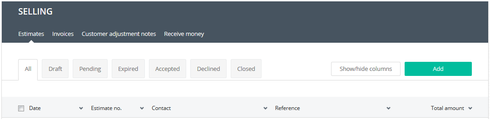
Note:
- The expired tab shows estimates with a pending status where the expiry date has lapsed
- The closed tab shows estimates with a closed-invoiced status & estimates with a closed-declined status
New estimate with approvals enabled

Declined estimates allow you to set a closed-declined status.

What happens to existing estimates when toggling the approvals setting?
- When enabling approvals, any existing estimates with an open status will default to using an accepted status.
- When disabling approvals, any existing estimates with draft, pending or accepted statuses will default to using an open status.
To access the approvals setting; Administration menu > General settings > Day to day > Selling > Approval process