Share Price Downloads from ASX


Over the last few weeks I’ve been trying to solve a couple of issues –
- Error message ‘Transfer Cancelled” when attempting to transact across accounts.
- Failure in the process to download share prices from the ASX
The only thing I found ongoing success with was the fixing of problem 1. above, by uninstalling Reckon PP and reinstalling via the ISetup.exe from the HAB>Disk1 folder in the Reckon PP 2022 Installation Application downloaded from my Reckon Account. The procedure is outlined via the following link -
https://community.reckon.com/discussion/8030880/i-keep-getting-the-message-transfer-cancelled#latest
Regarding my ‘still existing’ problem with share price downloads, I can only manage partial resolution!
By using the procedure outlined above re point 1., the reinstallation allows me to successfully download the latest ASX prices. BUT, if I exit from Reckon, and re-enter again, my problem has returned!!
I have performed the uninstall/re-install numerous times since, and on an intermittent basis, I either get the ability to download prices, or I don’t. But, on all occasions that I have exited Reckon and re-entered, I lose the ability to download prices. I’ve even tried the reinstall using the Setup.exe (as opposed to ISetup.exe) installation file, with similar results.
Other things I have done to try and solve my problem are-
- ‘Validate’ and ‘Super Validate’,
-a deep clean of the entire PC to identify and delete any malware and/or viruses, and
- a clean up of all Reckon files, using Revo Uninstaller, prior to a fresh re-install of Reckon PP.
The interesting situation I have is that all the above is in relation to using my HP Desktop PC which runs Windows 10 Home and it’s specs are such that I am unable to upgrade to Windows 11. But, I run many other applications on this PC without any issues whatsoever!
The other interesting thing is that I also have a HP laptop with Windows 11 Home installed, and since having these issues, I installed Reckon on it and it seems to run without any hitches. But, I want to use Reckon on the desktop PC! Which I have successfully done for the last 8 years on this machine, until recently!
I’ve also consulted a local IT business, and the person there suggested, after telling him my story, that without actually physically examining my system, I should firstly consult the Reckon technicians.
Sorry if I have been longwinded in describing my issue, but I’ve tried to give you all the relevant facts.
Hopefully, there is someone, be it a Reckon technician, or someone out there in our Reckon Community, that can help me.
Comments
-
0
-
You have already done the uninstall/re-install process along with the other clean up tasks you had indicated.
The main difference between your HP Desktop PC (Win 10 Home) and the HP Laptop (Win 11 Home) is the operating system.
There may also be a difference in the pre-installed software that each computer comes with either the desktop or laptop that is not present on the other computer.
There may also be other concurrently installed software that may be conflicting.
If you are wanting to spend more time troubleshooting and testing, in order to get the Reckon Personal Plus to work consistently on your HP Desktop running Window 10 Home, consider trying:
- Running the Reckon Accounts Personal Plus EXE using the "Run as Administrator" function in Windows
or
- Creating a new Windows user account login and give it Administrator or Super User access level permissions. Then re-installing the Reckon Accounts Personal Plus on this user account. This could eliminate the possibility that it is something specific to the user account that you are currently using/logging in with on that HP Desktop that could be contributing to the issue.

Searching the Reckon Help and Support Centre | Asking good questions on the Community
#TipTuesday: Picture Paints a Thousand Words | How do I add screenshots to my discussion?
1 -
Hi guys
Many thanks for providing your advice on my issues above. I decided that before I went down the road of your suggestion of creating a new Windows account, I would do what I had been contemplating for the last couple of weeks. That is, I performed a 'Reset' of Windows 10 on my PC (my PC is about 8 years old and its specs are such that it does not support Windows 11). I selected the option which keeps my files, but removes all my self installed apps and their settings but keeps all my personal files. Whilst the process took about 2-3 hours, it was quite straight forward and painless. But, the best part was, after reinstalling Reckon PP, my ASX download issues were no longer!! PROBLEMS APPEAR TO BE SOLVED!!
However, prior to performing the above, some how, when I have been able to successfully download the ASX prices, the graphical price history has been lost (see below)
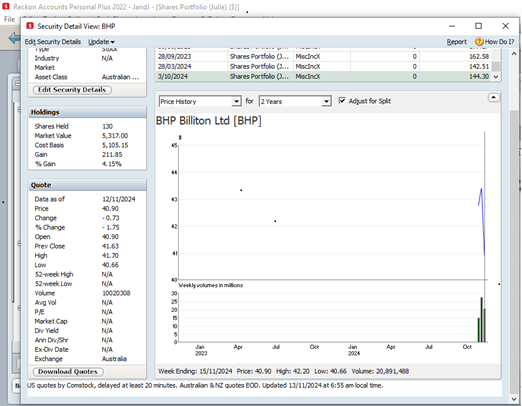
Is there any way I can retrieve that historical data, which, for some share holdings, goes back many years?
0 -
Glad to hear that the refresh of the Windows OS and a re-installation of the Reckon Accounts Personal Plus software had resolved the share price download issue.
With the price history, that is normally stored is a file that has a ".QPH" file extension.
Its file name would be identical to your data file name.
For example, if your data file name is "QDATA" then:
QDATA.QDF —- this is the primary file
QDATA.QPH —- this is the price history file
(There are other supplementary files that constitute a data file set)
Your file name appears to be "JandJ", so you would likely have files in the data file set like:
JandJ.QDF
JandJ.QPH
JandJ.QEL
and so on.
If you have been making use of the backup function of the Reckon Accounts Personal Plus software that combines the primary data file and the supplementary files, you would have a backup that has a file extension ".RKN".
Example: JandJ.RKN or "JandJ DD-MM-YYYY.RKN" (if you have enabled the addition of the date to the backup file name
If you look at the current data file that you have opened and where it is located, have a look at the size of the QDF and the QPH files.
Then if you have older copies of the data file or other backup sets, check the size of the QPH file in those older sets.
If the size of the QPH in the older backup copies is larger than that which is in the current data file set, then those older QPH files may contain the missing price history you are looking for.
You could then consider:
- Make a backup of your current data file set and store it in a known folder location
- Close the Reckon Accounts Personal Plus application
- Rename the existing current QPH file (Example: QDATA.QPH.OLD)
- Make a copy of the QPH from the older sets which is larger and place it in the same folder location as the current data file set, ensure that the file name of the QPH is identical to the one that is the current QDF file. (Example: if you had renamed a file from QDATA.QPH.OLD, ensure that the larger QPH file you are copying would be called "QDATA.QPH")
- Re-open the Reckon Accounts Personal Plus application and open the current data file (QDF) and confirm whether the replacement of the QPH file now shows the price history you are expecting)
Searching the Reckon Help and Support Centre | Asking good questions on the Community
#TipTuesday: Picture Paints a Thousand Words | How do I add screenshots to my discussion?
1 -
Hi Reckon Data Recovery Team
Many thanks for your clear and concise instructions above. I have just followed them and the result was just as you said it would be.
Again, thank you!😀👌
0 -
Glad to hear the suggestion has been successful.
Searching the Reckon Help and Support Centre | Asking good questions on the Community
#TipTuesday: Picture Paints a Thousand Words | How do I add screenshots to my discussion?
1

 Reckon Staff
